GitHub
ByDefault commits articles to your repository, or opens a pull request.
 JoshUpdated 2 min read
How it works
For blogs whose posts are Markdown or MDX files in a GitHub repository. When you publish, ByDefault writes the article as a file in your posts folder, named and with frontmatter like your other posts, then commits it or opens a pull request. Your site deploys it like any other post.
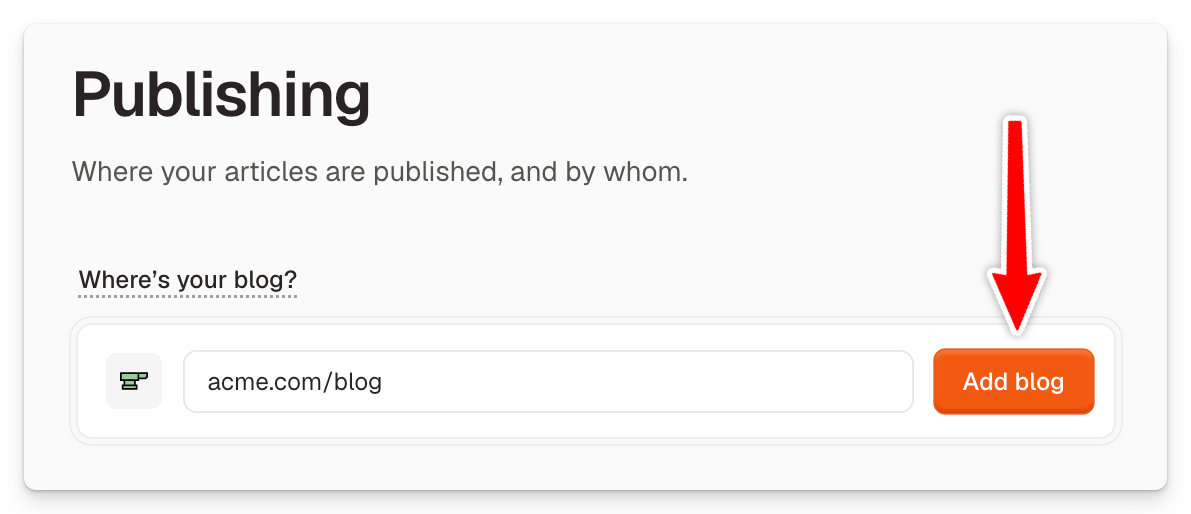
Enter your blog URL
Open Publishing, enter your blog's URL, and click Add blog.
Connect your repository
-
Click your blog, pick GitHub as the publishing method and click Save.
-
Click Settings on the GitHub row, then Connect GitHub.
-
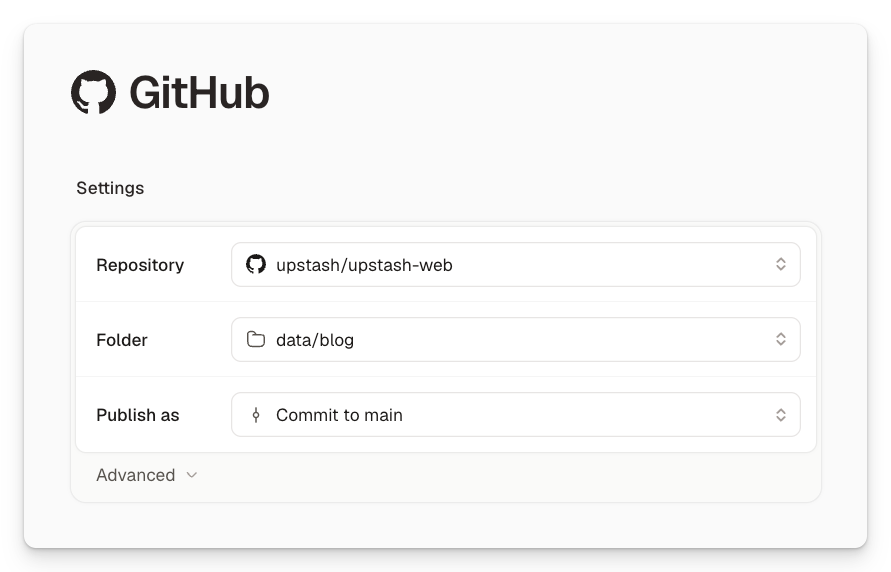
Pick the Repository and click Save.
-
Pick the Folder your posts live in, and Publish as: Pull request or Commit to main. Click Save.
If you can't install apps on the GitHub organization, GitHub asks its admins instead, and the page will wait for a GitHub admin to approve ByDefault.
Match your posts
ByDefault names files the way your posts in that folder already do. To change it, open Advanced and pick a File name: my-example-title.mdx, a date prefix like 2026-10-22-my-example-title.mdx, or a folder per post like my-example-title/index.mdx.
The Frontmatter table lists the keys at the top of your posts and where each value comes from: the article (Title, Slug, Description, Publish date, Updated date or Authors), Ask when publishing, or a Fixed value. Add field offers keys that only some of your posts use.
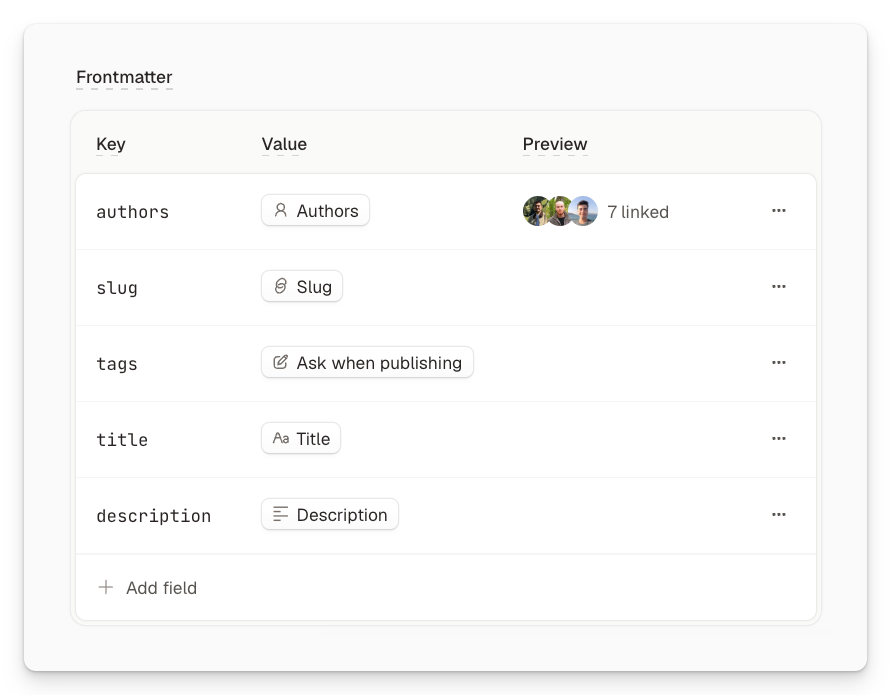
If your posts name authors by short names like josh, click the Authors row to link each name to an author in ByDefault.
Publish an article
Click Publish in the top right of the article:
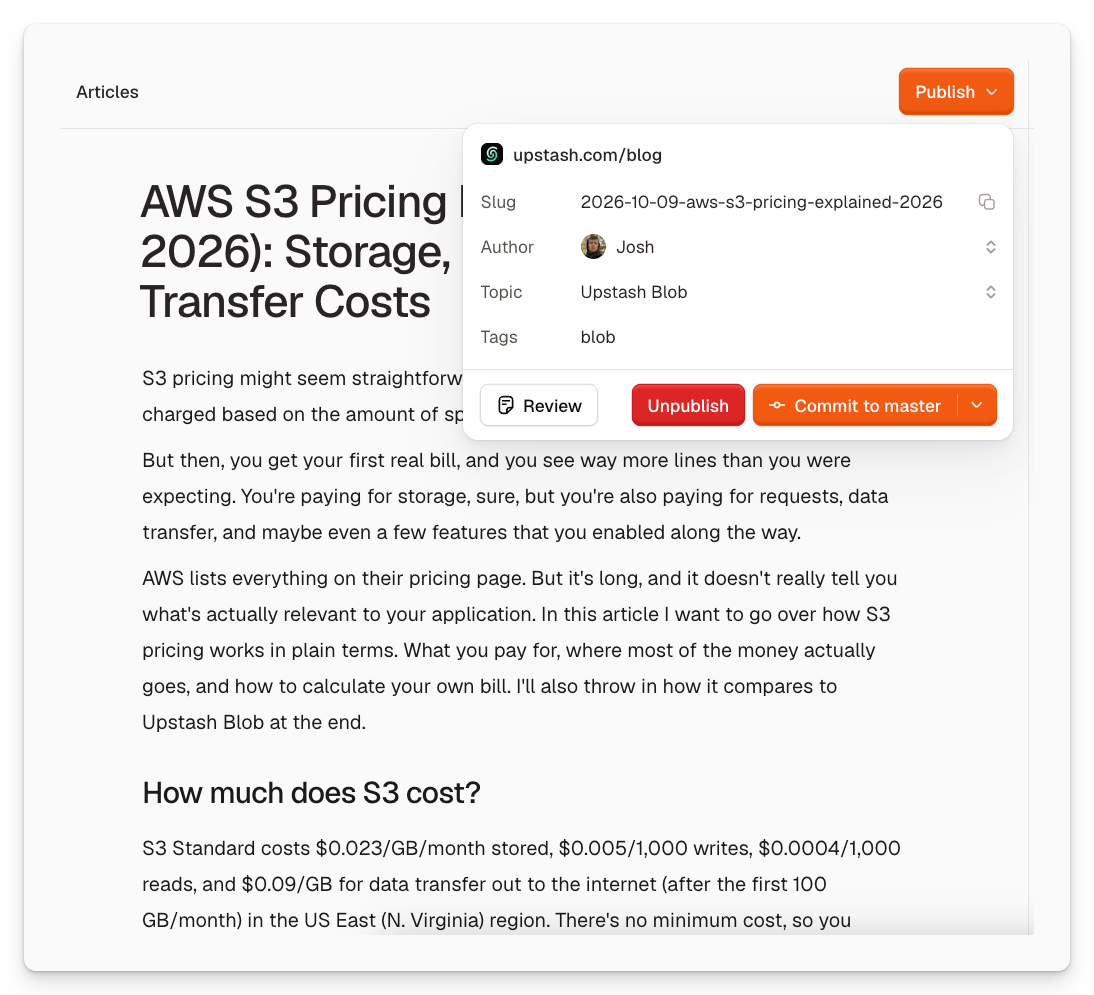
Review opens the file as ByDefault will commit it, where you can also edit the commit message.
Troubleshooting
The commit button says Pick a folder in Publishing
The blog has a repository but you haven't selected a folder to commit the files to. Open the blog's GitHub page and pick the Folder your posts live in.
My repository isn't in the list
ByDefault only sees the repositories you granted it on GitHub. At the end of the Repository menu, click Add a repository. It opens GitHub, where you can grant that one too.
My folder isn't in the list
The menu lists the folders where ByDefault finds posts. If yours is still empty, add one post to it on GitHub, then open the menu again.
Did this answer your question?